
Start the System
Once everything is set up, follow these steps to start the system:
- Turn on every Access Point using the switch on the device (below the USB connector).
- Connect the AP Lead to the Edge using a USB to Micro USB cable.
- Connect the Edge to a network with internet access.
- Turn on the Edge
- Turn on the AP Lead.
- Wait up to 5 minutes for everything to start.
- Turn on a Tag and open the environment. Do not cover the Tag antenna while it is turned on.
You should see the localized Tag appear as a blue dot in the environment.
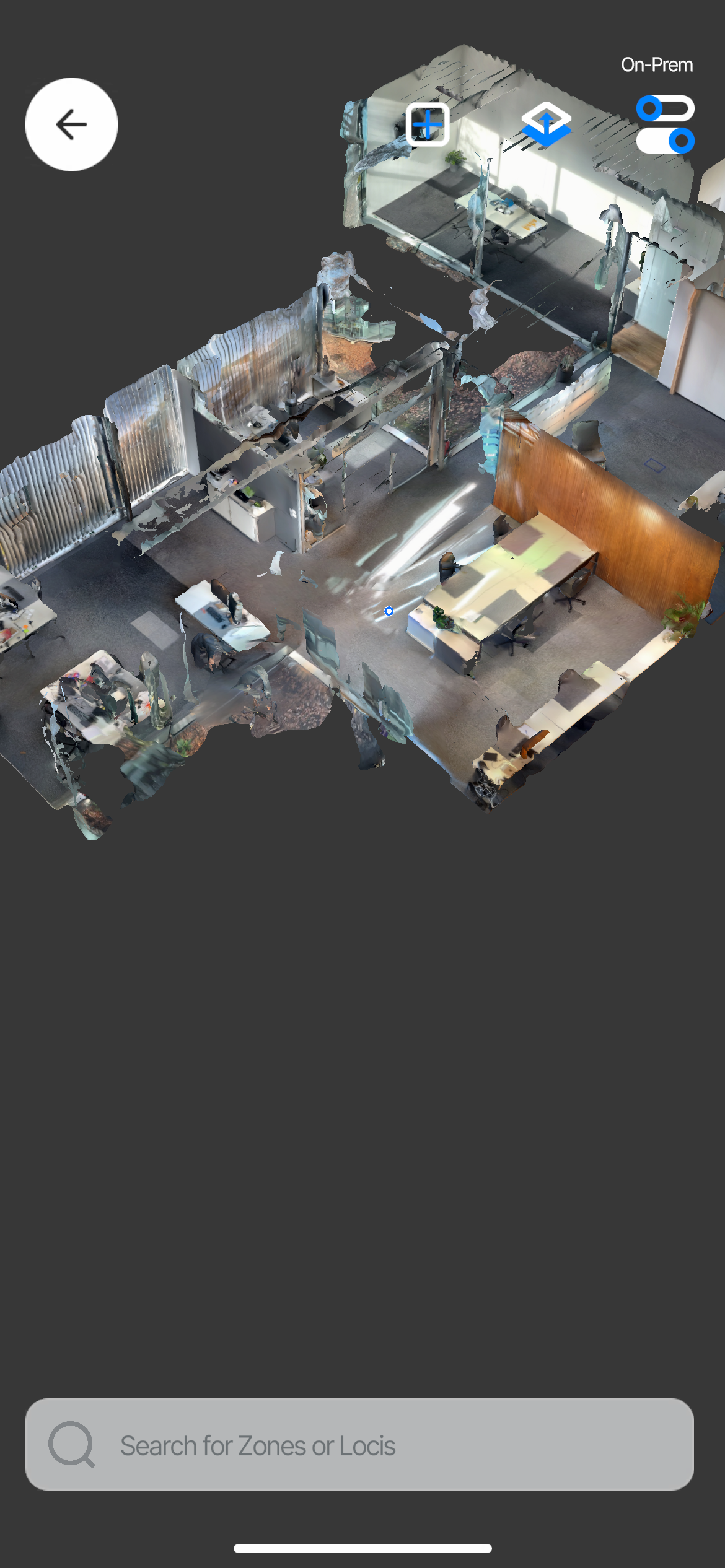
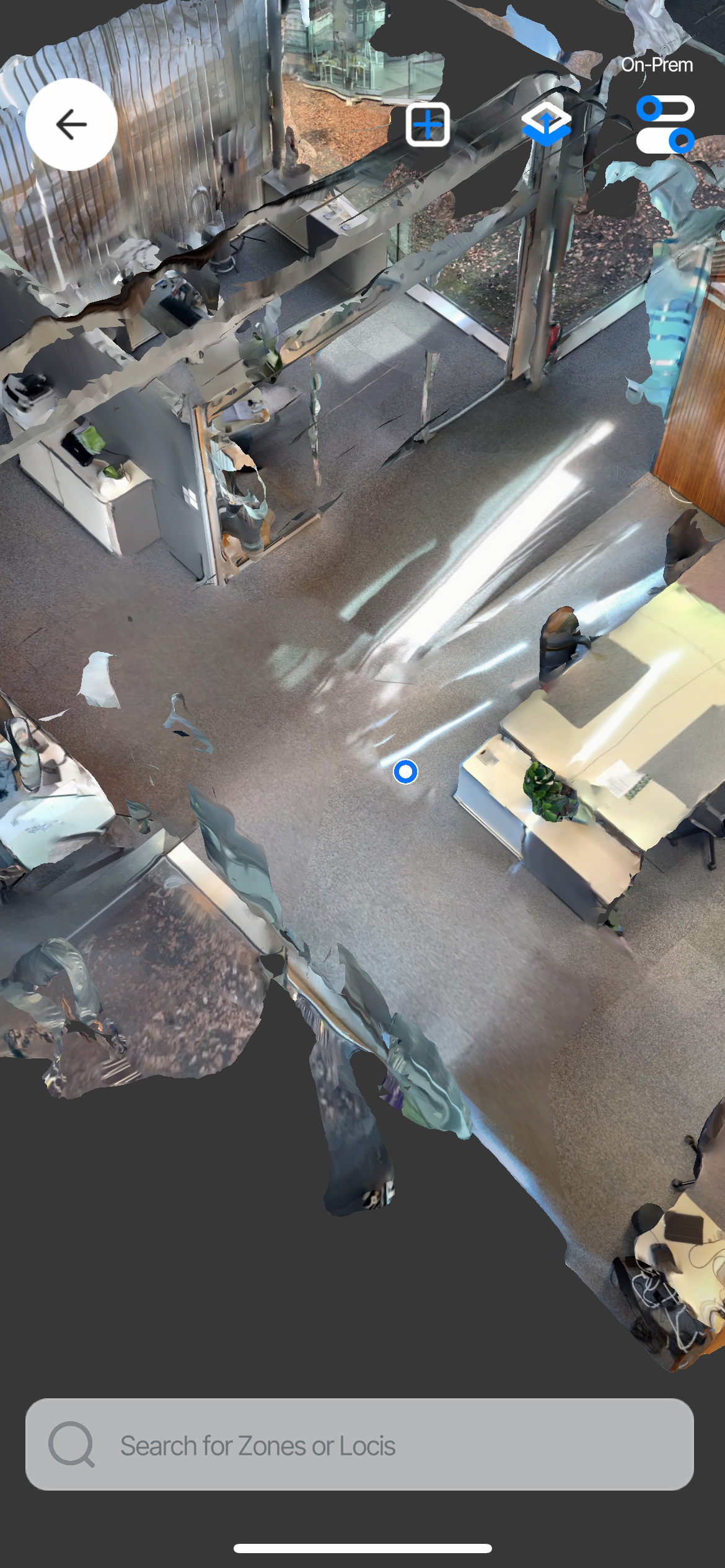
The localized Tag appears as a blue dot at its position.
On-Prem vs Cloud
The connection method is displayed in the upper-left corner of the app.
- On-Prem: The app is on the same network (WiFi) as the Edge. The app receives data (position, triggered zones, etc.) directly from the Edge. This results in a high update rate and low latency.
- Cloud: The app is connected to the Edge via the cloud. This increases latency and lowers the update rate.
The accuracy is the same regardless of whether Cloud or On-Premise is used. The only difference is the latency and update rate.
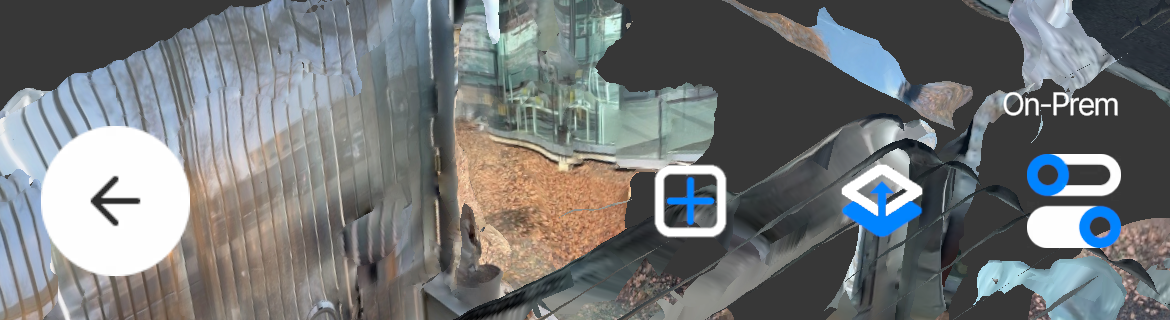
App connected via On-Prem
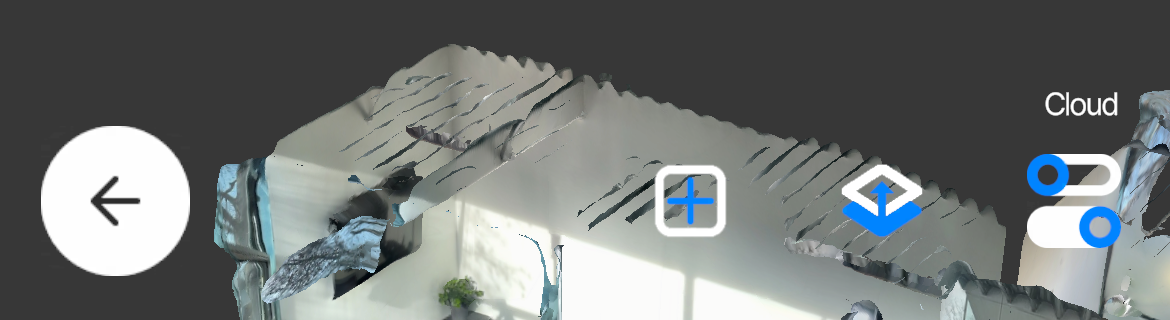
App connected via Cloud
Common Errors
No data is received
- Not all Loci devices are turned on
- Check if the Edge is switched on. You can verify this by checking whether the power-on LED is on.
- Check if the AP Lead is switched on. You can see if the LED is on.
- Check if Access Points are switched on. You can see if the LED is on.
- Check if the Tag is switched on. You can see if the LED is on.
- Internet connection is not working (Edge cannot communicate with the cloud)
- Establish an internet connection.
- Make sure the LAN cable is plugged in correctly.
- No connection with AP Lead
- Check if the AP Lead is connected.
- Check if the AP Lead is switched on.
- Check if the AP Lead is in range.
- Check for blocked line of sight to the AP Lead.
- No connection with Tag
- Check if the AP Lead is connected.
- Check if the AP Lead and/or Access Points are switched on.
- Check if the AP Lead and/or Access Points are in range.
- Check for blocked line of sight to the AP Lead and/or Access Points.
- Too few active Access Points
- Check if enough Access Points are turned on.
- Check if enough Access Points are in range.
- Else
- Restart the system.
- Contact Support
The localization performance is too low
- Inaccurate 3D model
- Verify that the 3D model is acceptable.
- Otherwise, perform a rescan.
- Incorrect Placement of Access Points
- Check if Access Point positions (X, Y, Z) are set correctly in the 3D model.
- Otherwise, correct the Access Point positions.
- Bad Access Points Constellation
- Verify that Best Practices for Access Point Placement were followed.
- Otherwise, reposition Access Points accordingly.
- If the constellation cannot be improved, add more Access Points.
- Tag is outside of the localization area
- Move the Tag inside the localization area.
- Adjust the localization area size.
- AP Lead is not always in range
- Move the AP Lead into range.
- Reduce the localization area.
- Too few active Access Points
- Check if enough Access Points are turned on.
- Check if enough Access Points are in range.
- Strong Interfering Environment Factors
- Check if the Tag has line of sight to enough Access Points.
- Localization Configuration Parameters have to be tuned
- Else
- Restart the system.
- Contact Support
Updated 8 months ago
What’s Next
Did this page help you?