
Loci Device Management
Guide for managing Loci devices, including firmware updates, UWB channel configuration, and device type changes.
WarningTo avoid damaging the device:
- Do not turn off the Loci during Device Management operations.
- Do not close the Admin App or move it to the background.
- Stay within 3 meters during Device Management operations.
Device Management
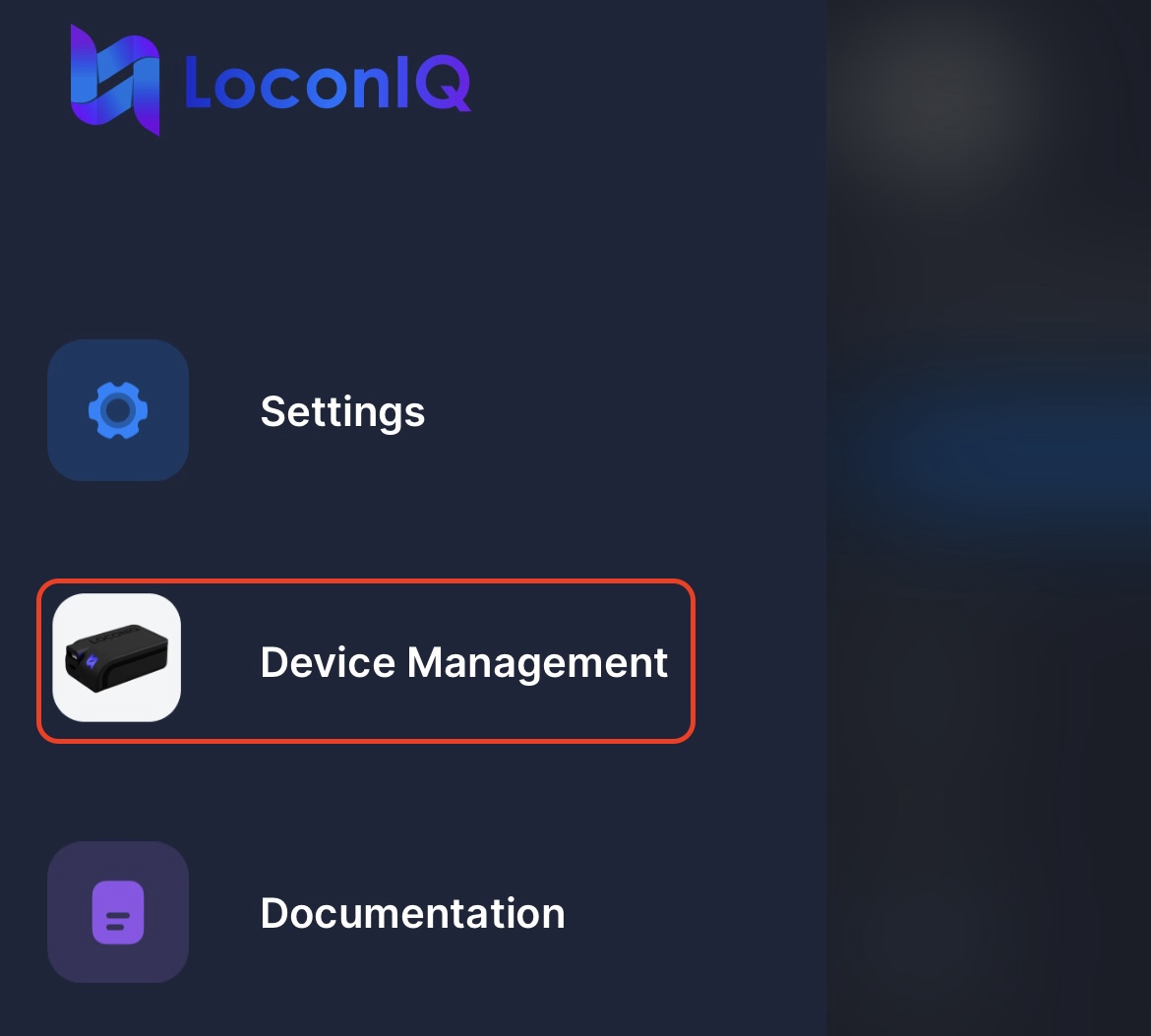
To access device management, select the menu button in the upper left corner:

Then, click Device Management:
The view displays all detected Locis. These must be assigned to your organization, so add a newly received box to your account.
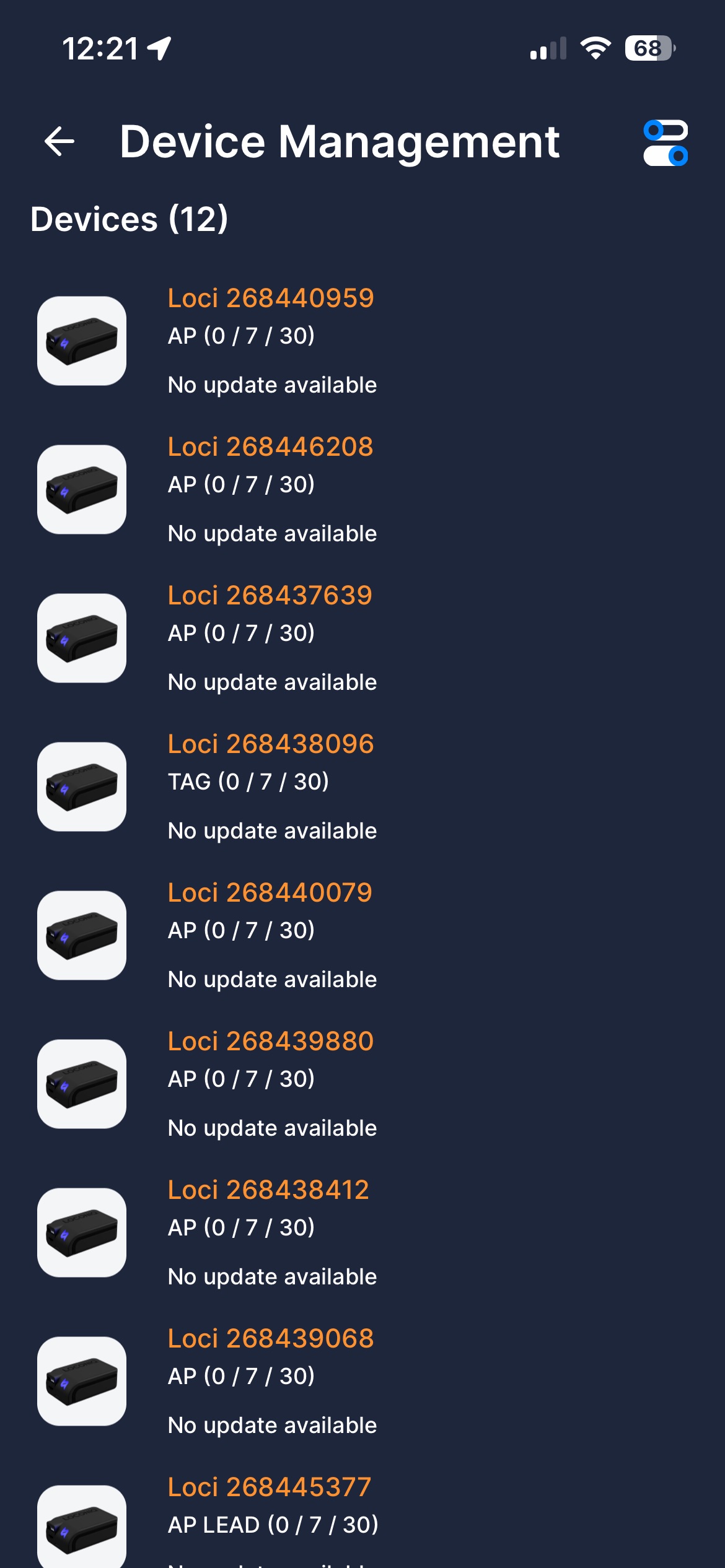
The Loci IDs (e.g., Loci 268440959) are the same as those used for the API. The ID color indicates the BLE signal strength: green is best, orange is middle, red is worst. Firmware updates cannot start if the signal is red.
The line AP (0 / 7 / 30) describes the type (AP), the ranging channel (0), the control channel (7), and the total number of available channels (30).
Firmware Update via BLE
Firmware updates on the Loci device are performed wirelessly over Bluetooth Low Energy (BLE). This cable-free method requires careful handling to avoid corrupting the device.
How the Firmware Update Works
-
Bring your iOS device close to the Loci. BLE has a limited range, so close proximity is required.
-
Go to the
Device Managementview. -
Locis with an available update will display
Update available. If the connection is weak, move closer to the Loci.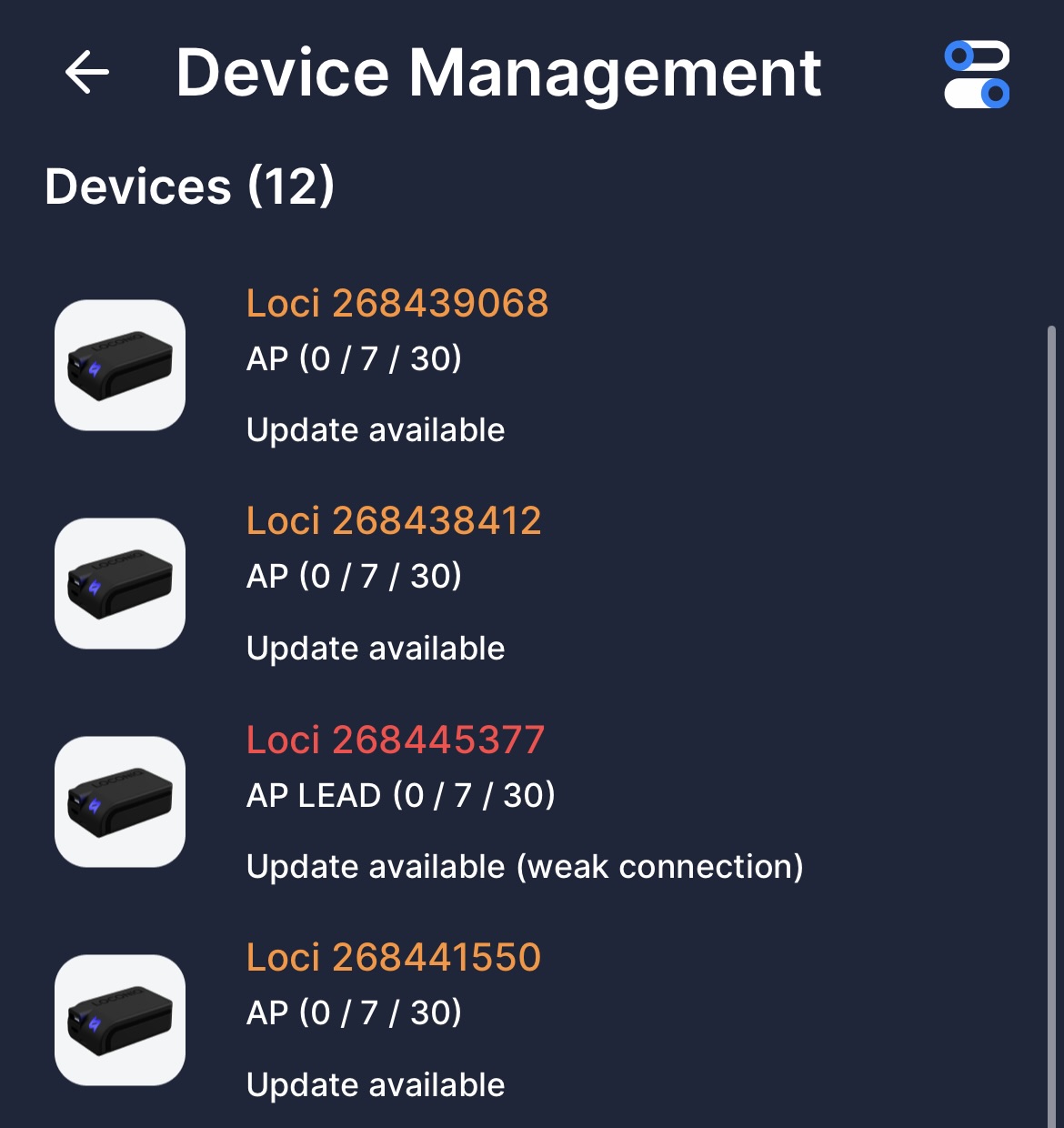
-
Select the Locis you want to update, click the button in the upper right corner, and select
Update Firmware.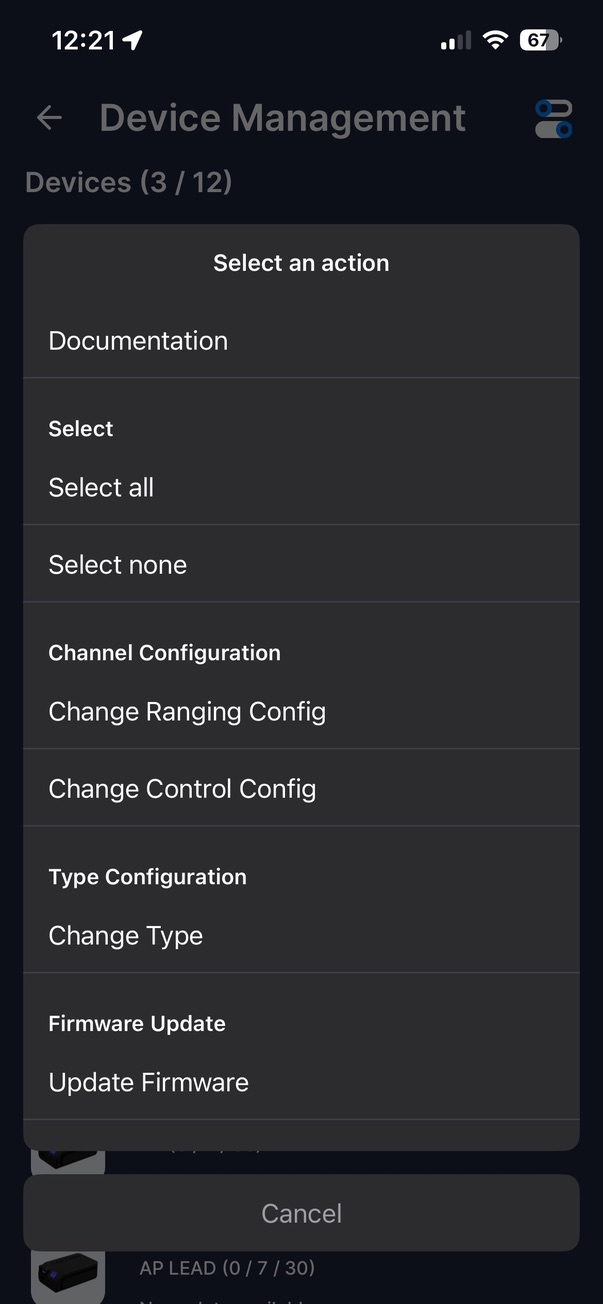
-
The Loci will enter update mode and receive the new firmware in data packets. A maximum of four Locis will update simultaneously, while others remain
In queue.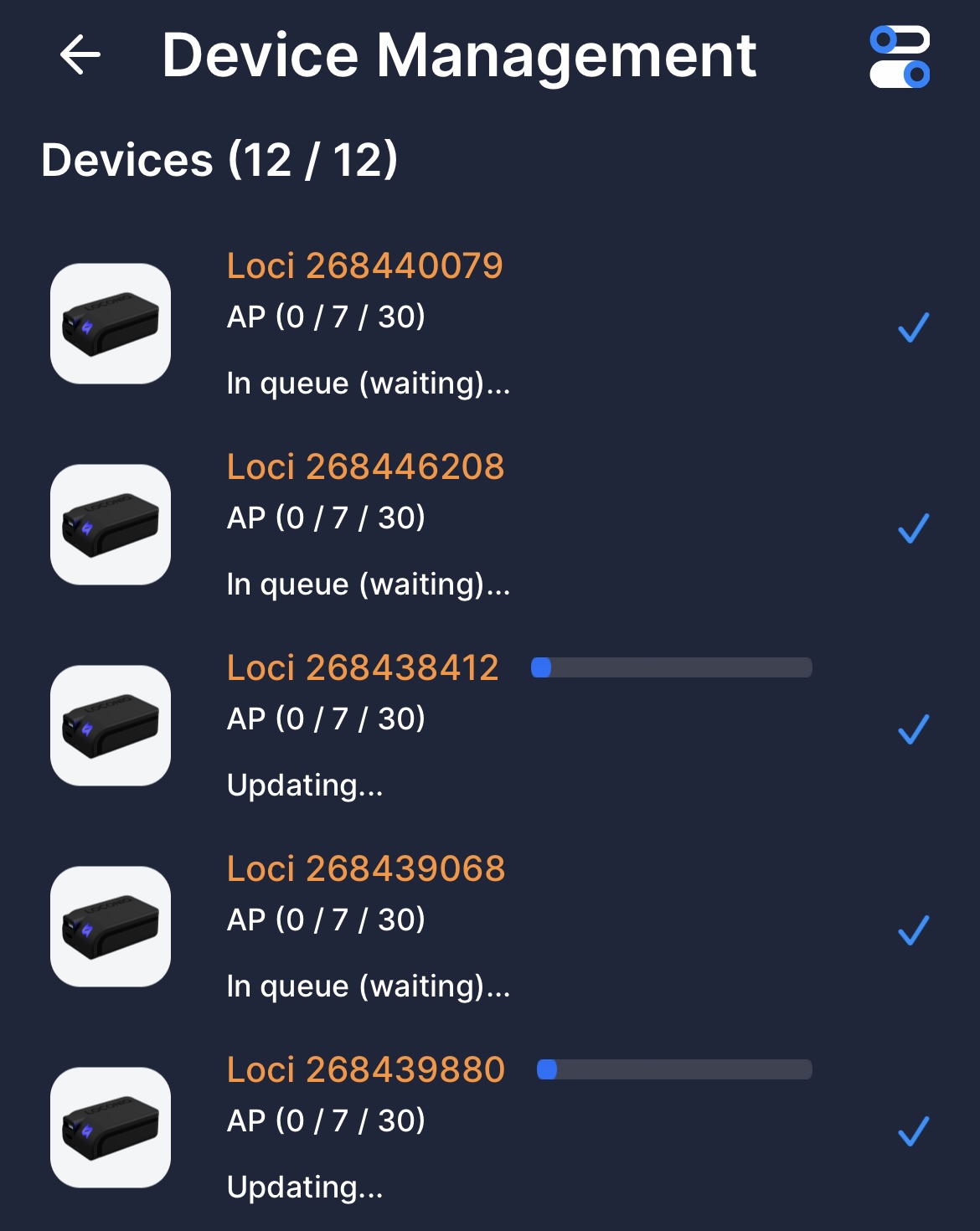
-
After the transfer completes, the device will restart automatically.
Important Notes and Risks
-
Keep devices close: Increasing the distance can weaken the BLE link, slowing down or interrupting the update. This can break the device.
-
Connection loss during update: If the BLE connection drops mid-transfer, the firmware may become incomplete, leaving the Loci unusable.
-
Battery levels: Ensure your mobile device and the Loci have sufficient battery. If they shut down during transmission, the update may fail. Connect to a power supply if unsure.
-
System breakage risk: Updating firmware carries a small risk of bricking the device if interrupted. Only update when necessary and avoid moving devices during the procedure.
-
Firmware update failed: If the update fails, restart the Loci and try again.
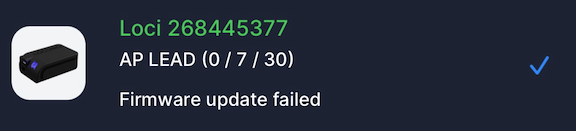
If an update fails and the device no longer starts normally, contact support for recovery instructions.
Ensure all Locis have the same firmware version to communicate effectively.
UWB Channel Configuration (Control & Ranging)
The Loci device uses Ultra-Wideband (UWB) communication for precise ranging. Two different logical channels are involved:
- Control Channel: Used for configuration, coordination, routing, and management communication.
- Ranging Channel: Used for distance measurements.
These channels must not use the same UWB channel number, as this would cause interference and unreliable ranging performance.
Channel changes are performed via BLE, allowing you to reconfigure the UWB settings even if the UWB performance is degraded.
Why Change Channels?
Different environments affect UWB performance differently. Key factors include:
- Center frequency: Determines how well the signal penetrates obstacles.
- Bandwidth: Influences precision and robustness.
- Regulatory constraints: Some regions may restrict specific bands.
- Interference: Other UWB or RF systems may operate nearby.
Choosing an optimal pair of control and ranging channels helps maintain stability.
How the Channel Update Works
-
Bring your iOS device close to the Loci. BLE has a limited range, so close proximity is required.
-
Go to the
Device Managementview. -
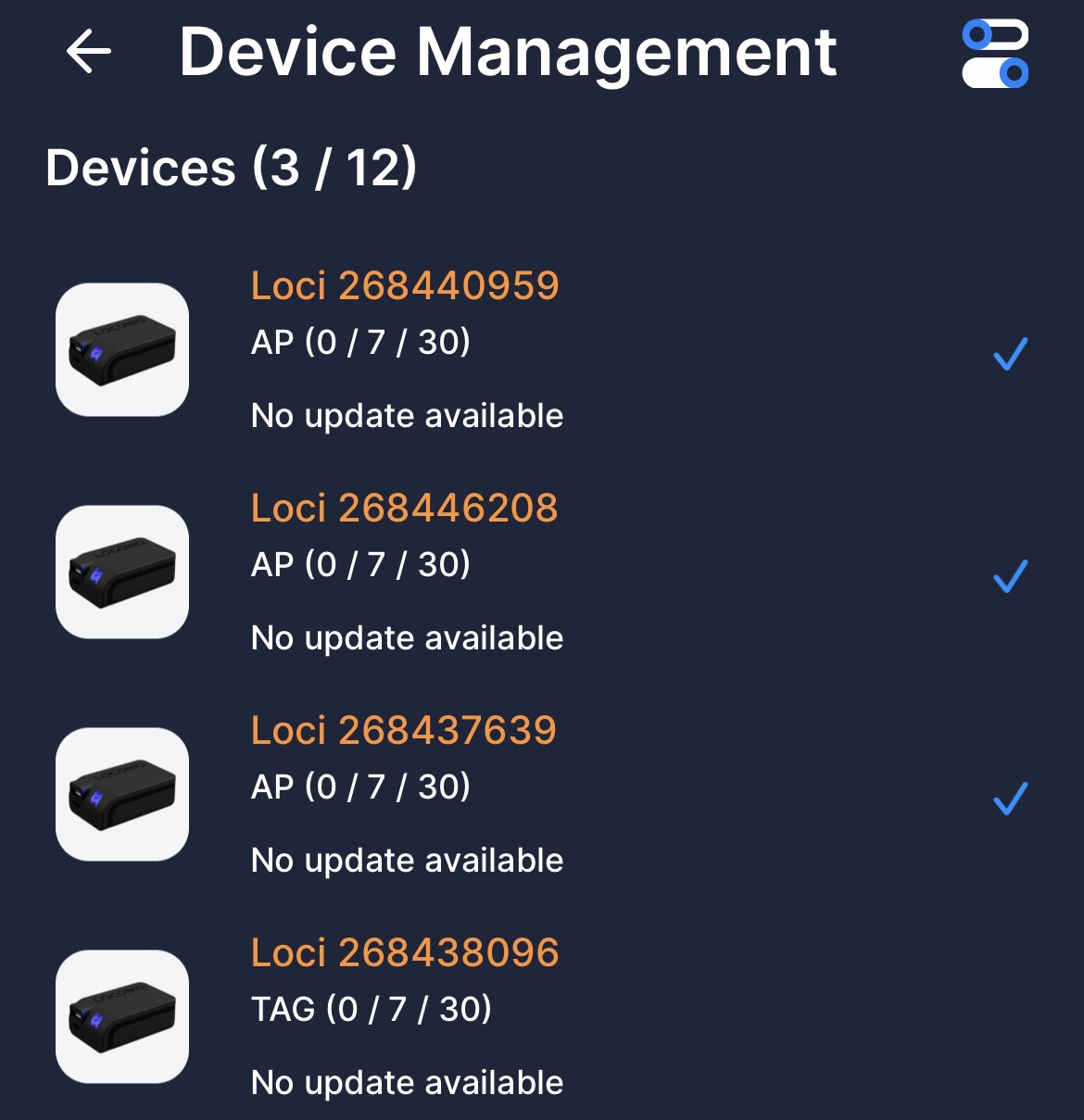
Select the Locis you want to change. Ensure all Locis in your environment have the same channel configuration to communicate effectively.
-
Click the icon in the upper-right corner to select
Change Ranging ConfigorChange Control Config.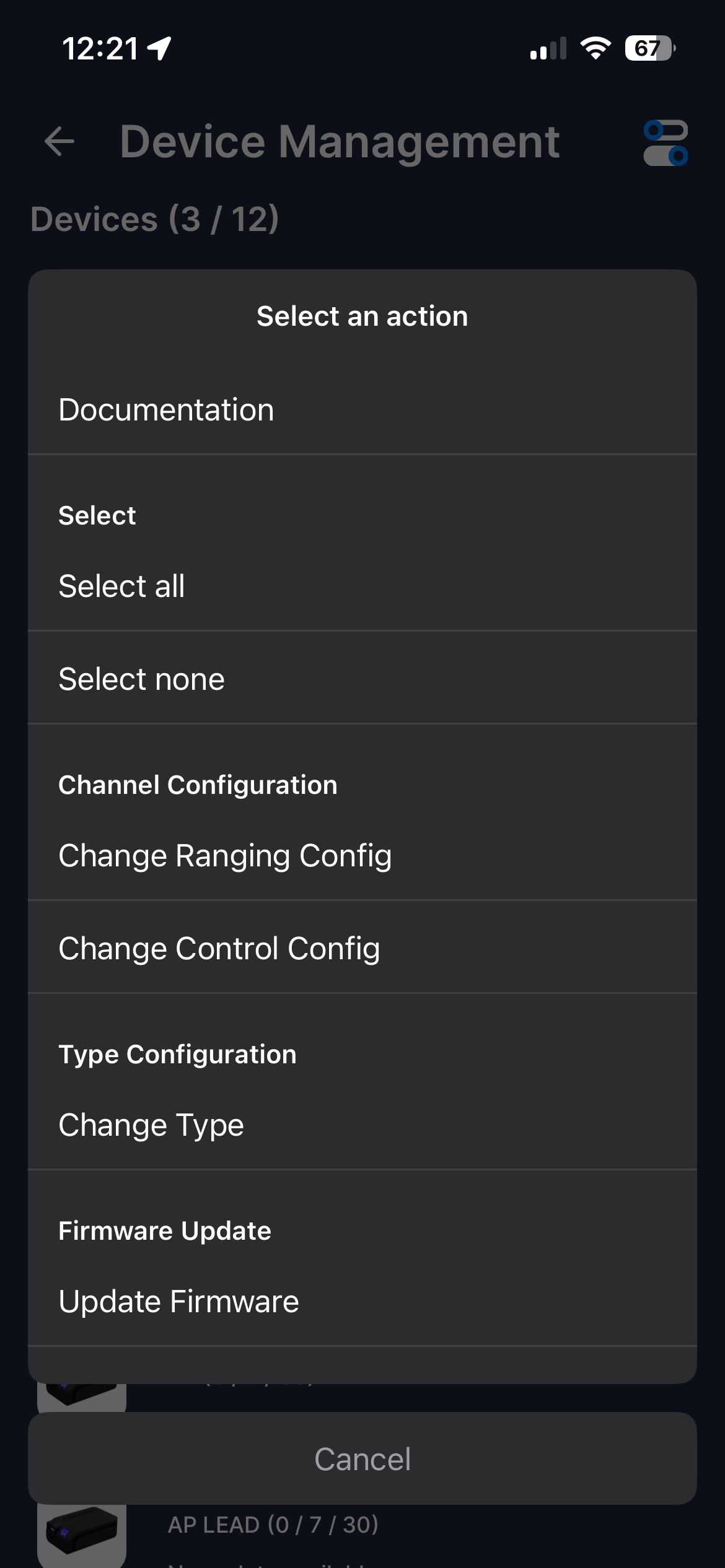
-
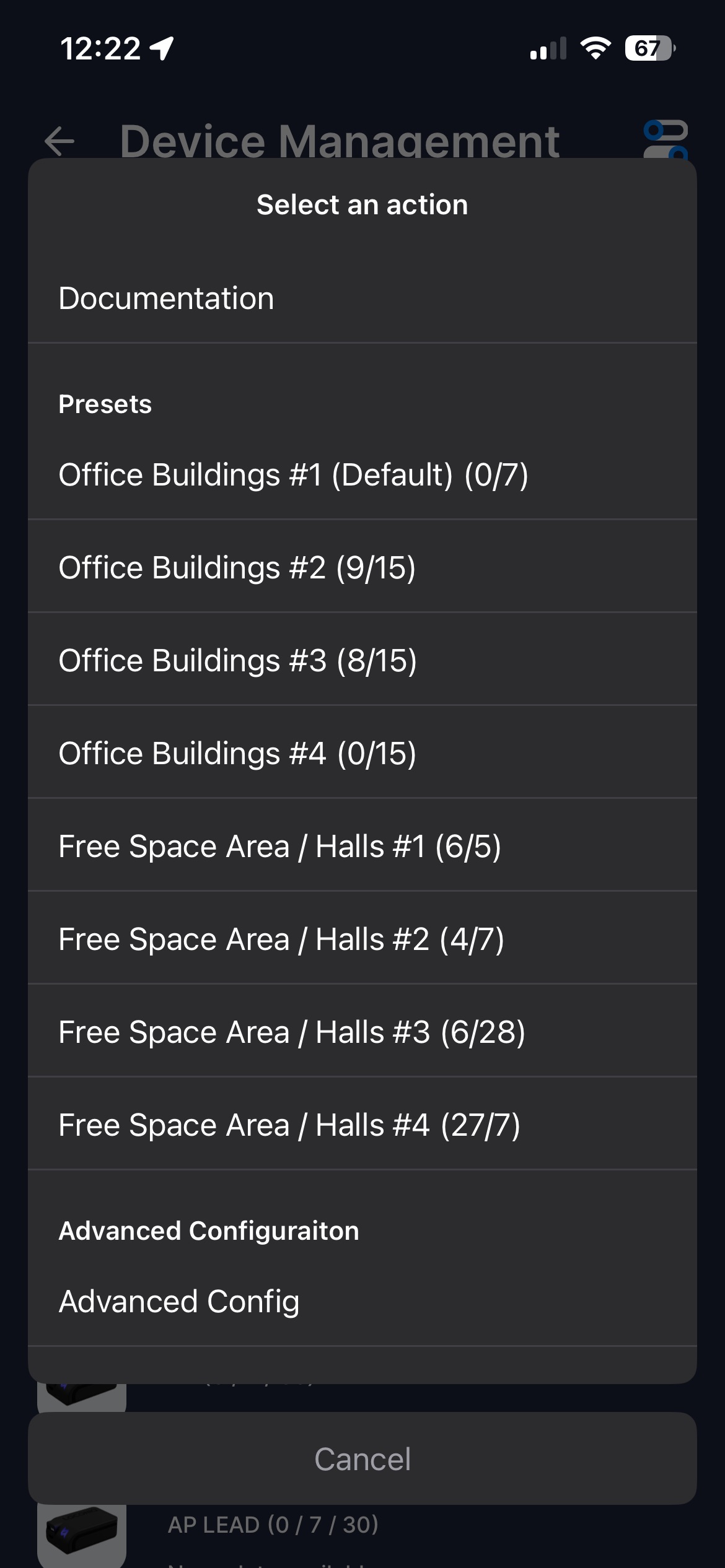
A list of presets appears, along with an advanced configuration option to enter any valid channel number.
-
After you select a preset, the app applies the configuration. Use the same preset for both
ControlandRangingconfigurations.
Environment-Based Recommendations
These recommendations come from real-world testing. Different channels may be necessary for your specific environment.
| Area | Ranging | Control |
|---|---|---|
| Office Buildings #1 (Default at delivery) | 0 | 7 |
| Office Buildings #2 | 9 | 15 |
| Office Buildings #3 | 8 | 15 |
| Office Buildings #4 | 0 | 15 |
| Free Space Area / Halls (Setting 1) | 6 | 5 |
| Free Space Area / Halls (Setting 2) | 4 | 7 |
| Free Space Area / Halls (Setting 3) | 6 | 28 |
| Free Space Area / Halls (Setting 4) | 27 | 7 |
Ensure all Locis have the same channel configuration to communicate effectively.
Device Type Configuration
The Loci hardware is flexible: although every unit is physically the same, software defines its role in your environment.
Why Different Device Types Exist
Each type plays a specific part in the overall positioning system. Read the full device type definitions in the official docs.
How to Change the Device Type
Change device types over BLE while the device is nearby, following the same process as firmware and channel updates.
-
Bring your iOS device close to the Loci. BLE has a limited range, so close proximity is required.
-
Go to the
Device Managementview. -
Select the Locis you want to change. Ensure all Locis in your environment have the same channel configuration to communicate effectively.
-
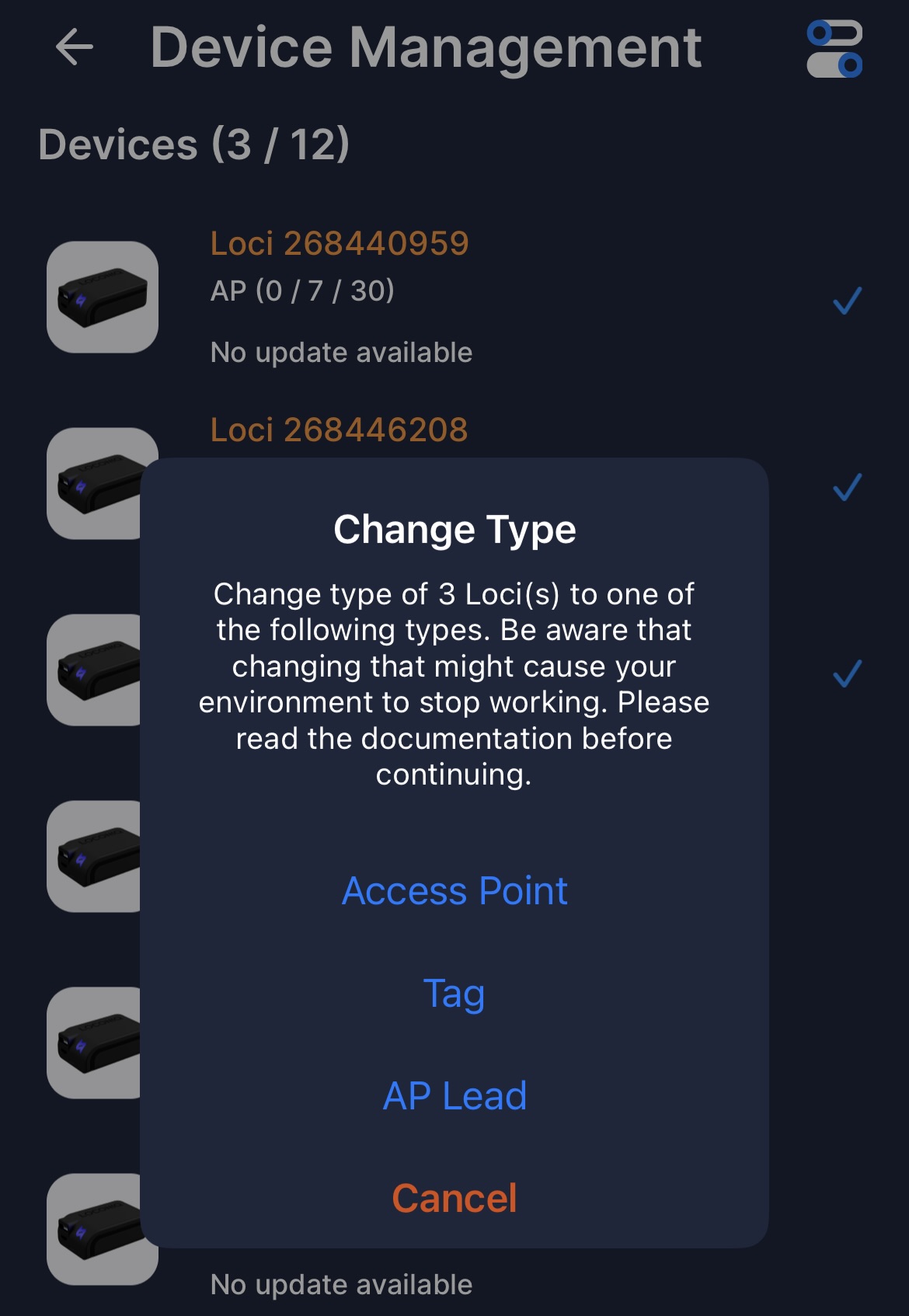
Click the icon in the upper-right corner to select
Change Type. -
Choose the new device type.
-
Verify the change has been applied successfully.
Important Considerations
- Only one AP Lead per environment: After switching a device to AP Lead, ensure no other Loci holds that type.
- Interference with UWB network: Changing a device type can affect how the environment behaves. Always re-validate connectivity and performance afterward.
- BLE Stability: Like firmware updates, losing BLE mid-configuration may leave the device in an inconsistent state. Always keep the device within 2–3 meters during the change.
Updated 8 months ago